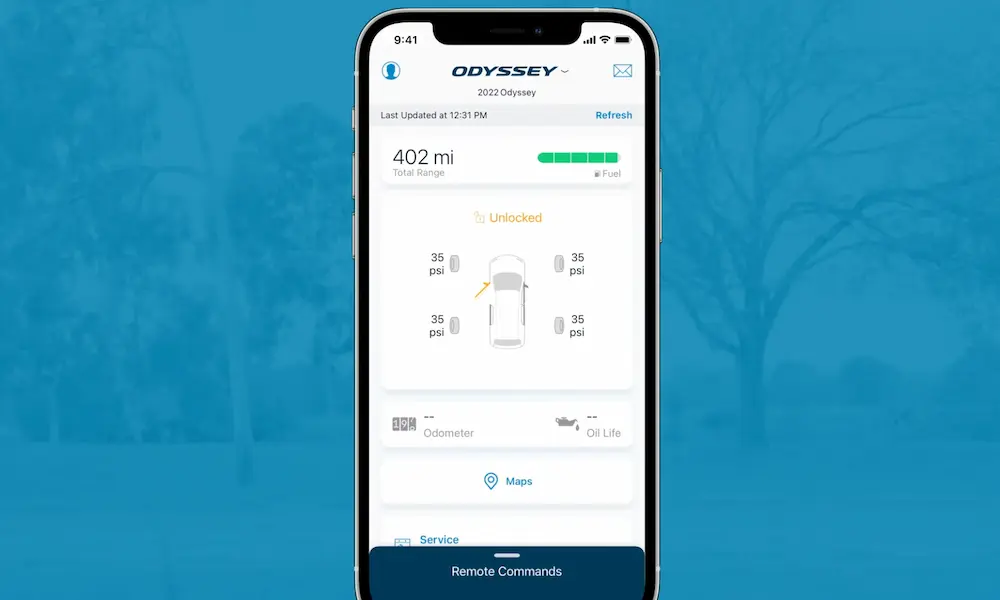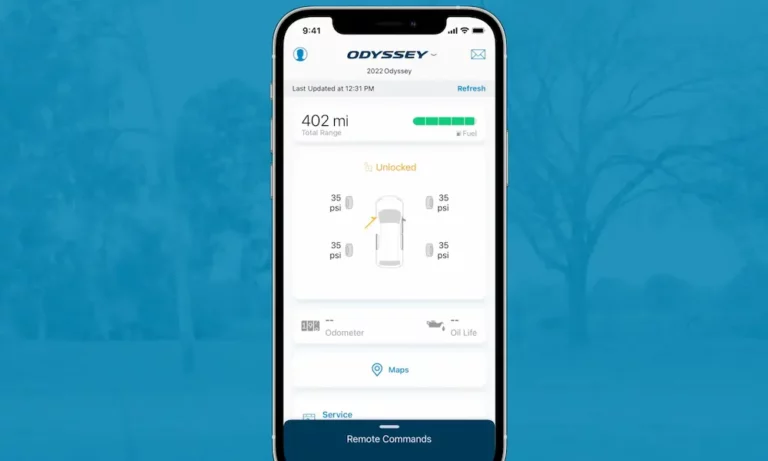
You’re sitting in your garage, ready to warm up your car on a frosty morning. You open the HondaLink app, tap the remote start button, and… nothing happens. Sound familiar?
Honda’s connected car system promises convenience and peace of mind, but for many owners, it delivers frustration instead. Let’s fix that by tackling every common HondaLink failure with practical, step-by-step solutions.
What Exactly Is HondaLink (And Why Does It Keep Failing)?
HondaLink isn’t just one thing—it’s a complex system with multiple parts that all need to work together:
- Your smartphone app (the command center)
- Your car’s onboard computers (including the infotainment screen and the hidden Telematics Control Unit)
- Honda’s remote servers (which relay commands between your phone and car)
When you tap “remote start,” your command travels from the app through the internet to Honda’s servers, then through AT&T’s cellular network to your car’s TCU, which finally tells your engine to start. A failure anywhere in this chain means your command never reaches your car.
This complexity explains why HondaLink problems are so common—and why the fixes aren’t always obvious.
Most Common HondaLink Problems (With Instant Solutions)
App Crashes or Won’t Open
This is usually the easiest problem to fix:
- Update the app – Check the App Store or Google Play for available updates
- Clear the app’s cache (Android users) – Go to Settings > Apps > HondaLink > Storage > Clear Cache
- Restart your phone – This fixes more problems than you’d think
- Reinstall the app – As a last resort, delete the app completely and download a fresh copy
If the app still won’t open after these steps, the problem might be on Honda’s end—a server outage affecting all users. You can check by searching “HondaLink outage” on Reddit or Twitter to see if others are reporting the same issue.
Can’t Complete Initial Vehicle Setup
Many owners get stuck during the “verify your vehicle” step of setup, seeing a frustrating “cannot communicate with vehicle” error.
To fix this:
- Temporarily disable Apple CarPlay or Android Auto on your phone
- Make sure Bluetooth is enabled on both your phone and in the car
- Verify you’re using the vehicle’s VIN correctly when scanning
- Try setting up while parked in an area with good cellular reception
If these steps don’t work, call HondaLink support at (888) 528-7876 and specifically ask them to “send a provisioning signal” to your vehicle.
Subscription Features Disappeared After Payment
This extremely common problem has a specific cause: when you pay for a subscription, Honda’s servers need to send an authorization token to your car’s TCU—but this handshake often fails.
The quickest fix:
- Call HondaLink support at (888) 528-7876
- Tell them specifically: “My paid remote features disappeared immediately after my trial ended and I paid for a subscription. I believe my vehicle needs to be re-provisioned.”
- Ask them to “push a signal” or “send a re-provisioning command” to your car
Using this specific language helps the support agent understand the true problem instead of starting with basic troubleshooting.
Vehicle Status Not Updating (Fuel Level, Mileage)
When your app shows outdated information, try these steps:
- Open the app while sitting in the car with the ignition on
- Force close and reopen the app
- Check your Bluetooth connection between phone and car
- If still not updating, restart the infotainment system (instructions below)
Remote Commands Fail (Start, Lock/Unlock)
Remote commands rely on your car’s cellular connection, not Bluetooth. Try these fixes:
- Make sure your car is parked where it has good cellular reception (not underground)
- Check that your subscription is active in the app under “Manage Subscription”
- Force close and restart the app
- If all else fails, call HondaLink support and request a “re-provisioning” of your vehicle
How to Fix Infotainment System Glitches
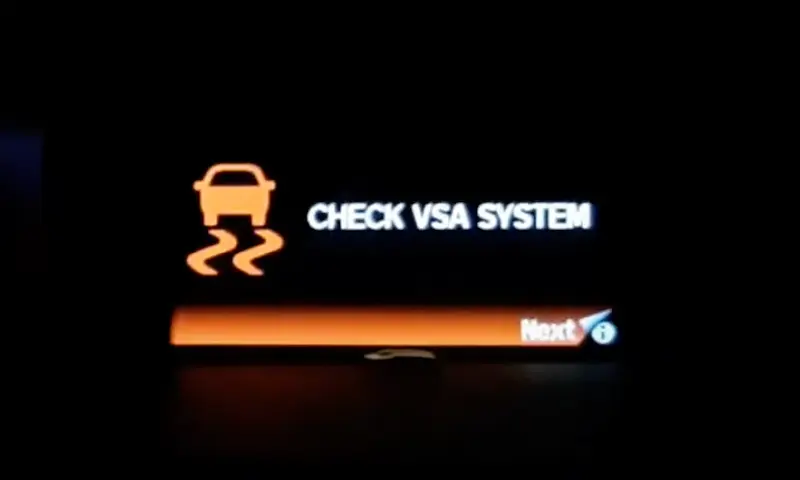
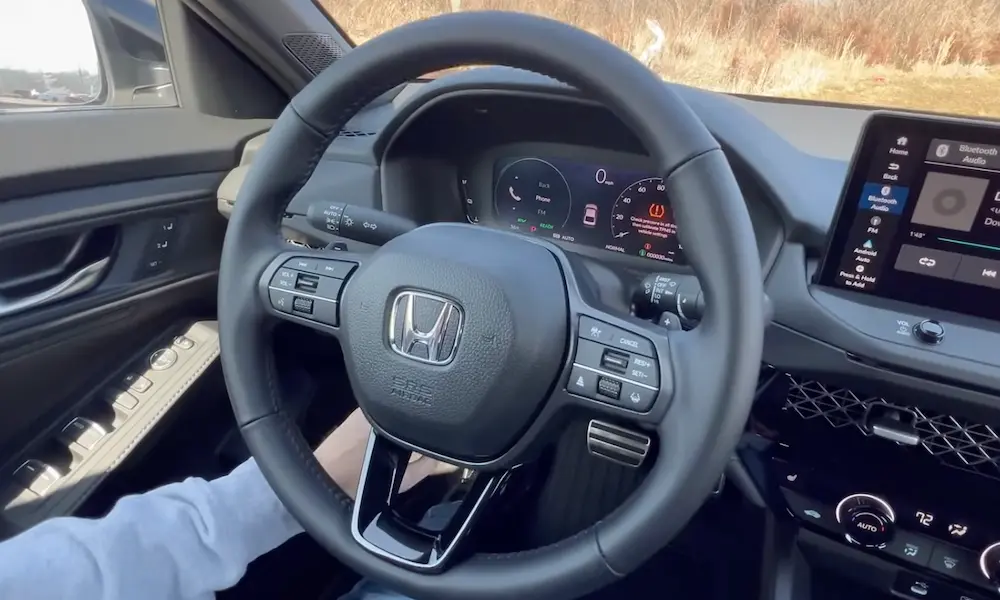
Your car’s infotainment system is the brain that controls HondaLink, and it’s notorious for problems like freezing screens, system crashes, and phantom warning messages.
Soft Reset (First Try This)
This reboots the system without erasing your settings:
- With the vehicle running, press and hold the power/volume knob for 5-10 seconds
- The screen will go blank, then show a reboot prompt
- Select “Yes” to restart the system
- Wait for the Honda logo and system to fully reload
This simple reset fixes about 80% of infotainment issues, including phantom warnings and system freezes.
Re-establish Bluetooth Connection
If your phone and car aren’t communicating properly:
- Delete the connection from both sides:
- In your car: Home > Settings > Bluetooth/Wi-Fi > Bluetooth Device List > select your phone > Delete
- On your phone: Settings > Bluetooth > find “HandsFreeLink” > Forget Device
- Re-pair from scratch:
- On your car’s screen, select Add Bluetooth Device
- On your phone, enable Bluetooth and select the car when it appears
- Confirm the pairing code matches on both screens
Factory Reset (Last Resort)
If nothing else works, you can completely reset the infotainment system:
- Navigate to Home > Settings > Vehicle > Factory Data Reset
- Confirm when prompted
- This will erase all your saved settings, paired phones, and preferences
Comprehensive Troubleshooting Table
| Problem | Likely Cause | Solution |
|---|---|---|
| App crashes or freezes | Corrupted app data | Clear app cache (Android), reinstall app |
| Can’t verify vehicle in setup | Bluetooth conflict | Disable CarPlay/Android Auto temporarily |
| Remote features missing after payment | Subscription provisioning failure | Call support for manual re-provisioning |
| Phantom warning messages on screen | Software conflict with phone | Disconnect phone, reboot infotainment system |
| Vehicle status not updating | Failed data sync | Open app while in car with ignition on |
| Remote start won’t work | Poor cellular reception | Move car to area with better cell coverage |
| Infotainment screen frozen | Head unit software crash | Hold power/volume knob for 10 seconds |
| Bluetooth won’t connect | Corrupted pairing profile | Delete pairing from both car and phone, re-pair |
HondaLink Subscription Tiers Explained
One source of confusion is not understanding which features you’re actually entitled to. HondaLink has multiple subscription tiers:
Basic Features (Free)
- Digital owner’s manual
- Recall notifications
- Service scheduling
- Parking reminder
Link Package (Free)
All Basic features plus:
- Vehicle health monitoring (fuel, oil, mileage)
- Send navigation destinations from phone to car
Security Package ($89/year)
All Link features plus:
- Automatic collision notification
- Emergency call button
- Enhanced roadside assistance
Remote Package ($110/year)
All Security features plus:
- Remote engine start
- Remote door lock/unlock
- Find my car
- Stolen vehicle locator
- Security alarm alerts
Concierge Package ($260/year)
All Remote features plus:
- Live personal concierge service
Check your subscription status in the app to confirm which features you should have access to.
When To Contact Honda Support
If you’ve tried all the fixes above and still have problems, it’s time to contact Honda directly. Use these specific contacts:
- HondaLink support phone: (888) 528-7876
- Support email: [email protected]
- Hours: Monday-Friday, 6:00 a.m. to 5:00 p.m. Pacific Time
When calling, be specific about your problem. Instead of saying “my app doesn’t work,” use precise language like:
- “I’m experiencing a subscription provisioning failure”
- “My remote features stopped working immediately after renewal”
For persistent problems, ask for your case to be escalated to a “case manager” who can investigate more thoroughly.
The Technical Side: Hardware Problems That Affect HondaLink
Some HondaLink issues stem from known hardware and software problems. Honda has issued Technical Service Bulletins (TSBs) for several issues:
- Honda Accord TSB MC-10237040-0001 addresses “CAN Gateway Errors” affecting the infotainment system in 2023 models
- Honda Accord/Insight TSB MC-10203502-0001 covers the 3G network shutdown, requiring a software update for the TCU
If you’ve tried everything and still have problems, mention these bulletins to your dealer. Repairs under TSBs are typically covered if your car is still under warranty.
Understanding the Reliability Trade-offs
While HondaLink offers impressive features on paper, you should understand its limitations:
- Remote commands may take 30+ seconds (unlike your key fob, which works instantly at close range)
- Reliability varies by model year and cellular coverage area
- App stability depends on your phone’s OS version
For many owners, the key fob’s instantaneous response for remote start (albeit at shorter range) is more reliable than the app’s sometimes-sluggish performance.
Making the Most of HondaLink Today
Until Honda resolves the underlying issues with HondaLink, these strategies will help you get the most from the system:
- Keep the app updated – Always install the latest version
- Restart your infotainment system regularly – A monthly soft reset can prevent many problems
- Be strategic about subscriptions – Try the free trial before committing to a paid plan
- Save the support number in your phone – Quick access to support can save frustration
- Park in areas with good cellular coverage when possible – Remote features need a strong signal
HondaLink has tremendous potential, but until Honda stabilizes the platform, these troubleshooting tips should help you overcome most issues and enjoy the connected features you’ve paid for.