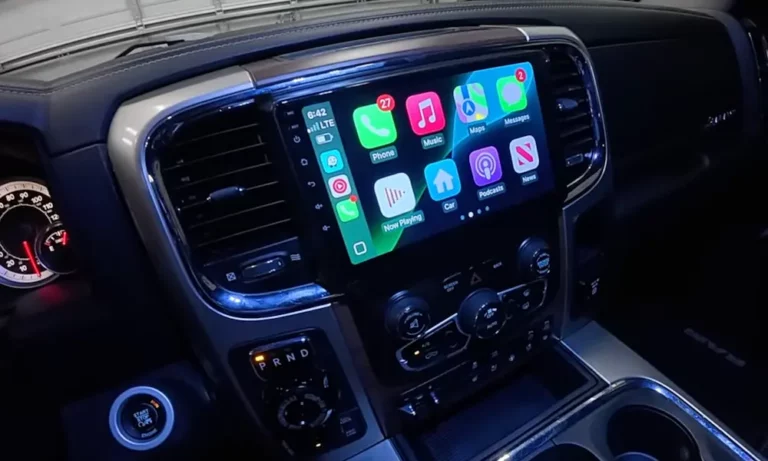
Your Uconnect CarPlay not working is frustrating, especially mid-commute. The good news? Most fixes take under five minutes. This guide covers every likely cause—from bad cables to iOS 18 bugs—so you can stop guessing and start driving connected.
Start Here: The Two Systems Aren’t the Same
Before you troubleshoot, know which Uconnect you have. Uconnect 4 (2016–2020 models) uses wired connections only. Uconnect 5 (2020 and newer) supports wireless CarPlay natively.
This matters because wired failures and wireless failures have completely different root causes. Fixing the wrong thing wastes your time.
Quick way to check: Go to Settings > System Information on your head unit. If you see an Android-based interface with profile icons, you’ve got Uconnect 5.
The Cable Is Probably the Problem (Wired Users)
Around 40% of CarPlay failures trace back to a bad cable. That cheap Amazon cable you’ve been using? It might only carry power—not data.
What Your Cable Actually Needs
CarPlay requires a USB 2.0 cable rated for at least 480 Mbps data transfer. That means four internal wires: power positive, power negative, data send, and data receive. Charge-only cables skip the data wires entirely.
Always use an MFi-certified cable (Made for iPhone). Non-certified cables fail Apple’s cryptographic handshake. Your phone charges fine, but CarPlay never launches.
Got an iPhone 15 or 16 with USB-C? Avoid adapters when possible. A direct USB-A to USB-C cable beats any adapter chain for signal reliability.
You’re Plugging Into the Wrong Port
Not every USB port in your Jeep, Ram, or Dodge connects to the head unit’s data bus. Only the center stack ports—usually outlined in white or marked with a phone icon—carry data. Console bin ports and rear passenger ports are charge-only.
| Port Location | Data Capable? | What It Does |
|---|---|---|
| Center stack (white outline) | ✅ Yes | Powers CarPlay |
| Center console bin | ❌ No | Charges only |
| Rear passenger area | ❌ No | Charges only |
| Front passenger dash port | Varies | Check your manual |
Also check your Lightning or USB-C port for lint. A partially seated cable disconnects every time the car vibrates. A wooden toothpick clears debris without damaging pins.
Your iPhone Settings Are Blocking CarPlay
This is the sneakiest category. Everything looks fine, but CarPlay won’t launch. Here’s why.
Siri Must Be On—No Exceptions
CarPlay won’t initialize without Siri. Apple built the interface around eyes-free voice commands, so the system rejects any connection where Siri is off. Check these two settings:
- Settings > Siri & Search > Listen for “Hey Siri” → ON
- Settings > Siri & Search > Allow Siri When Locked → ON
Screen Time Is Silently Killing CarPlay
If you use Screen Time or parental controls, CarPlay might be blocked without any notification. Go to Settings > Screen Time > Content & Privacy Restrictions > Allowed Apps and make sure CarPlay is toggled green. This catches a lot of people off guard.
The iOS 18 Problem Nobody Warned You About
iOS 18 introduced several CarPlay handshake issues that hit US users hard in late 2024. Two specific culprits:
VPN apps. If you run NordVPN, ExpressVPN, or similar, your VPN may block the local network handshake that wireless CarPlay needs about 30% of the time. Don’t just pause it—fully disconnect.
Device name conflicts. If you restored your phone from a backup or updated iOS, your Uconnect system may be trying to connect using a cached profile that no longer matches your device. Fix this by going to Settings > General > About > Name, giving your phone a new unique name, then re-pairing fresh.
| Setting | Where to Find It | Correct State |
|---|---|---|
| Hey Siri | Settings > Siri & Search | ON |
| Allow Siri When Locked | Settings > Siri & Search | ON |
| CarPlay Permission | Settings > General > CarPlay | ON |
| App Restrictions | Settings > Screen Time > Allowed Apps | CarPlay = Green |
| VPN | Settings > General > VPN | Fully OFF |
| Network Settings | Settings > General > Transfer or Reset | Reset if needed |
| Device Name | Settings > General > About > Name | Unique name |
How to Reset Uconnect (Three Levels)
When cables and phone settings check out, the Uconnect unit itself needs a reset. There are three escalating options.
Level 1: Soft Reset (Try This First)
A soft reset clears temporary memory without wiping your data. On most Chrysler, Dodge, Jeep, and Ram vehicles: turn the car to Run mode, then hold the Volume knob and Tuner knob simultaneously for 10–20 seconds. The screen goes dark, flashes the brand logo, and reboots. Your presets stay intact.
On Uconnect 5, you can also find a reboot option under Vehicle > Settings > Reboot.
Level 2: Factory Reset (Nuclear Option)
A factory reset wipes everything—Bluetooth pairs, climate presets, saved addresses. Use it when soft resets repeatedly fail.
- Uconnect 4: Hold temperature up and down buttons together to access the service menu, then select Reset to Factory Settings.
- Uconnect 5: Go to Settings > System Information > Reset.
After resetting, go into your iPhone’s CarPlay settings and forget the vehicle entirely before re-pairing. A clean slate matters here.
Level 3: Battery Disconnect (Deep System Reboot)
This forces every control unit in the car’s network to restart cold. It’s especially effective for deep communication errors between the USB hub and the infotainment processor.
Disconnect the negative battery terminal with a 10mm wrench. Leave it off for at least 15 minutes so all capacitors fully discharge. Reconnect and let the system reload—it may take a few minutes to reacquire satellite signals.
| Reset Type | How to Do It | Saves Your Data? | Best For |
|---|---|---|---|
| Soft Reset (Knob Hold) | Hold Vol + Tuner (15 sec) | ✅ Yes | Frozen screen, minor glitches |
| Power Cycle | Engine off, open/close door | ✅ Yes | Handshake timing errors |
| Factory Reset | Settings > System > Reset | ❌ No | Persistent connection failure |
| Battery Disconnect | Remove negative terminal 15 min | ❌ No | Deep hardware/bus errors |
Wireless CarPlay Dropping? Here’s the Real Fix
Wireless CarPlay uses Bluetooth to discover the car, then jumps to a Wi-Fi Direct connection for the actual data stream. If that handoff fails, CarPlay never fully launches.
The Auto-Join Problem
If your iPhone is already connected to your home Wi-Fi or a hotspot, it may not automatically join the car’s private network. Tap the (i) icon next to your car’s network in Wi-Fi settings and enable Auto-Join.
Private Wi-Fi Address Is Breaking Your Connection
iOS’s Private Wi-Fi Address feature randomizes your MAC address, which confuses Uconnect systems expecting a consistent hardware identifier. Disable this specifically for your car’s network: tap (i) next to the car network in Wi-Fi settings and toggle Private Wi-Fi Address off.
Similarly, if you run a vehicle hotspot, disable it while using CarPlay. Two competing networks from the same car confuse both your iPhone and the head unit.
Uconnect 5-Specific Fix: Enable Projection
This one’s easy to miss. Uconnect 5 has a Projection Manager that can silently block CarPlay even when your phone is connected. This happens most often in Chrysler Pacifica and older Ram trucks.
Go to Apps or Phone > Device Manager > Projection Manager. You should see your iPhone listed. Make sure the CarPlay icon next to your device name is highlighted with a blue checkmark. If it’s grey, tap it to enable projection.
Also check your driver profile. Uconnect 5 supports up to five driver profiles, and each stores its own CarPlay preferences. If you share the car, make sure the right profile is active before connecting.
Update Your Uconnect Firmware
Ignoring update prompts creates firmware mismatches that break CarPlay permanently—no cable swap fixes that.
For 2020 and newer vehicles: OTA updates download automatically when parked and connected to home Wi-Fi. Updates take up to 70 minutes and require Park mode. Don’t skip them.
For 2019 and older vehicles: You’ll need to do a manual USB update. Go to driveuconnect.com and enter your 17-digit VIN (found on your driver-side dashboard or registration). The 10th digit tells you your model year, which determines your exact hardware version and compatible firmware.
Third-Party Wireless Adapters: Know the Limits
If you have Uconnect 4 (wired only) and want wireless CarPlay, adapters like Ottocast plug into your data-enabled USB port and create a wireless bridge. They work, but they introduce their own failure variables—audio latency, firmware conflicts with iOS 18, and the occasional total dropout.
If CarPlay fails with an adapter, always unplug it and test with a direct wired connection first. That tells you immediately whether the adapter or something else is causing the problem.
What to Do If Nothing Works
If you’ve tried every step here and Uconnect CarPlay is still not working, the USB hub itself may have failed. Signs include ports that don’t charge any device or a head unit that never shows a Phone icon at all—even with nothing plugged in.
At that point, a dealership visit is the right call. Technicians can run diagnostic tools that check signal integrity through the internal wiring harness and telematics control unit—things you simply can’t access from the settings menu. Some CarPlay failures have also been reported to NHTSA as safety-adjacent infotainment issues, so it’s worth checking if your model year has any open service campaigns before paying for a repair.