Your phone won’t talk to your CR-V, and it’s driving you crazy. This guide covers every connection method for every generation — from old-school Bluetooth to wireless CarPlay. Stick around, because the fix is probably simpler than you think.
Which CR-V Do You Have? Start Here
Before anything else, know your model year. The method you need depends entirely on what Honda put in your dash. A 2009 CR-V and a 2024 CR-V are worlds apart.
Here’s the fast version:
| Model Year | System | Best Connection Method |
|---|---|---|
| 2007–2011 | HandsFreeLink | Bluetooth (voice commands only) |
| 2012–2016 | i-MID / Early Display Audio | Bluetooth + USB |
| 2017–2022 | Display Audio w/ CarPlay | Wired CarPlay / Android Auto |
| 2021–2022 (EX-L, Touring) | Display Audio | Wireless CarPlay / Android Auto |
| 2023–2025 (LX, EX) | 7-inch Display | Wired CarPlay / Android Auto |
| 2023–2025 (EX-L and above) | 9-inch Display | Wireless CarPlay / Android Auto |
Got your year? Great. Let’s get into it.
How to Connect Your Phone to a 2007–2011 Honda CR-V
These older models use Honda’s HandsFreeLink Bluetooth system, and it’s voice-driven. There’s no touchscreen here — just buttons and your voice.
Here’s what to do:
- Park the car. Turn the ignition to “On” or accessory mode.
- Press the Talk button on your steering wheel.
- Say “Phone setup,” then say “Pair” when prompted.
- The system reads out a 4-digit PIN code through the speakers.
- On your phone, open Bluetooth settings and scan for devices.
- Select “HandsFreeLink” from the list.
- Enter the PIN your car just told you.
- Give your phone a name when asked — like “My iPhone.”
That’s it. Calls work. Music streaming? Mostly not — these early units often lack the A2DP profile needed for audio streaming.
Quick tip: You need Bluetooth enabled on your phone before you start. The car can’t find your phone if it’s hidden.
How to Connect Your Phone to a 2012–2016 Honda CR-V
The fourth-gen CR-V added a small screen and a selector knob. The pairing process got easier, and a 6-digit confirmation code replaced the old PIN entry method.
Knob-based systems (2012–2014):
- Press the Phone button on the radio.
- When prompted, select “Yes” to add a new device.
- Your car shows a 6-digit code on the display.
- Your phone shows the same code — confirm it matches on both screens.
- Tap “Pair” on your phone.
Touchscreen systems (2015–2016 EX and above):
- Tap Settings on the Display Audio screen.
- Go to Phone → Bluetooth Device List.
- Select “Add Bluetooth Device.”
- Match and confirm the code on your phone and your screen.
Once paired, you can stream music and make calls. Press the Aux/Source button to toggle between Bluetooth audio and USB input.
How to Connect Your Phone to a 2017–2022 Honda CR-V
This generation is where CarPlay and Android Auto entered the picture. Most trims support both platforms, but the connection method depends on your trim level.
Wired CarPlay & Android Auto (2017–2020, and base trims 2021–2022)
This is the most important thing to know: not every USB port in your CR-V works for CarPlay or Android Auto. Only the port with a smartphone icon — usually in the front of the center console — carries data. The other ports charge your phone, nothing more.
Steps:
- Use a quality data cable. A cheap charging-only cable won’t work.
- Plug your phone into the data port (look for the smartphone symbol).
- First time connecting? Your screen asks if you want to enable CarPlay or Android Auto — tap “Always Enable.”
- The interface launches automatically.
For iPhone: Make sure Siri is turned on and CarPlay isn’t blocked under Screen Time settings.
For Android: Make sure Android Auto is updated in the Play Store. Grant permissions for contacts, location, and SMS when your phone asks.
Wireless CarPlay & Android Auto (2021–2022 EX-L and Touring only)
- First, pair your phone via Bluetooth — this creates the security handshake.
- Once Bluetooth connects, the car and phone negotiate a Wi-Fi Direct link automatically.
- CarPlay or Android Auto launches wirelessly.
For wireless to work, your iPhone needs both Bluetooth AND Wi-Fi switched on — even if you’re not on a Wi-Fi network. Android users need 5GHz Wi-Fi support on their phone.
How to Connect Your Phone to a 2023–2025 Honda CR-V
The sixth-gen CR-V split its infotainment into two systems. The trim you bought determines what you’re working with.
7-Inch System (LX, EX, Sport Hybrid) — Wired Only
Plug your phone into the USB-A or USB-C port in the front tray. The system detects your phone and launches CarPlay or Android Auto automatically. No menus to dig through.
Bluetooth for calls and music still works on all trims — go to Settings → Connections → Bluetooth to pair.
9-Inch System (EX-L, Sport-L, Sport Touring) — Wireless Available
You’ve got options here. Pick whichever feels easiest:
Option 1 — Smartphone icon on the home screen:
- Tap the smartphone icon → “+ Connect New Device.”
- Follow the Bluetooth pairing prompts.
- When your phone appears, the system asks if you want CarPlay or Android Auto — confirm it.
Option 2 — Steering wheel shortcut:
- Press and hold the Talk button for a few seconds while in park.
- This kicks off pairing mode without touching the screen.
Option 3 — Through Bluetooth settings:
- Go to General Settings → Connections → Bluetooth.
- Find your phone in the list.
- Check the box for CarPlay or Android Auto to upgrade from basic Bluetooth to full wireless mirroring.
The 9-inch system also includes a wireless charging pad — so once you’re connected wirelessly, your phone charges too. No cables needed at all.
Your Phone Isn’t Connecting? Fix It Here
Check the cable first
Most wired connection failures trace back to the USB cable. A charging-only cable won’t carry data. Use the original cable that came with your phone, or a certified replacement. Also check both the phone port and the car port for lint or debris — a can of compressed air fixes this fast.
Restart the infotainment screen
If your screen freezes or won’t detect your phone:
- Soft reboot: Press and hold the power/volume knob for 10–15 seconds. A reboot prompt appears — confirm it.
- Forced restart: If the screen is totally frozen, hold the power button for up to 40 seconds.
- Older models (2016–2021): Hold Power + Home for 15 seconds to clear the cache.
Delete the pairing and start fresh
Sometimes the stored pairing data gets corrupted. Delete your phone from the car’s Bluetooth list, then delete the car from your phone’s Bluetooth list. Pair again from scratch.
Factory reset as a last resort
If nothing works, a factory data reset through General Settings → System clears everything and gives you a clean slate. You’ll lose all stored contacts, paired devices, and presets — but it usually fixes persistent bugs.
Heads up for 2023–2025 owners: There’s a known wiring harness issue that can cause a permanent black screen. If a reset doesn’t fix it, that’s a dealer visit — it’s covered under recall protocols.
Wired vs. Wireless: Which Should You Use?
| Wired | Wireless | |
|---|---|---|
| Stability | Very reliable | Good, but can drop in high-interference areas |
| Audio quality | Best | Great |
| Battery impact | Charges your phone | Drains your phone |
| Best for | Long trips, GPS-heavy driving | Quick errands, short commutes |
For road trips where you’re running GPS the whole time, plug in. The charger keeps your phone alive and the connection stays rock solid. For a 10-minute drive, wireless is fine.
Selling Your CR-V? Clear Your Data First
Just deleting your phone from the Bluetooth list isn’t enough. Your contacts, call history, home address, and Wi-Fi credentials can still sit in the system cache.
Run a full Factory Data Reset before handing over the keys. It’s under General Settings → System on most modern CR-V models. This wipes everything completely.
What’s Coming in 2026
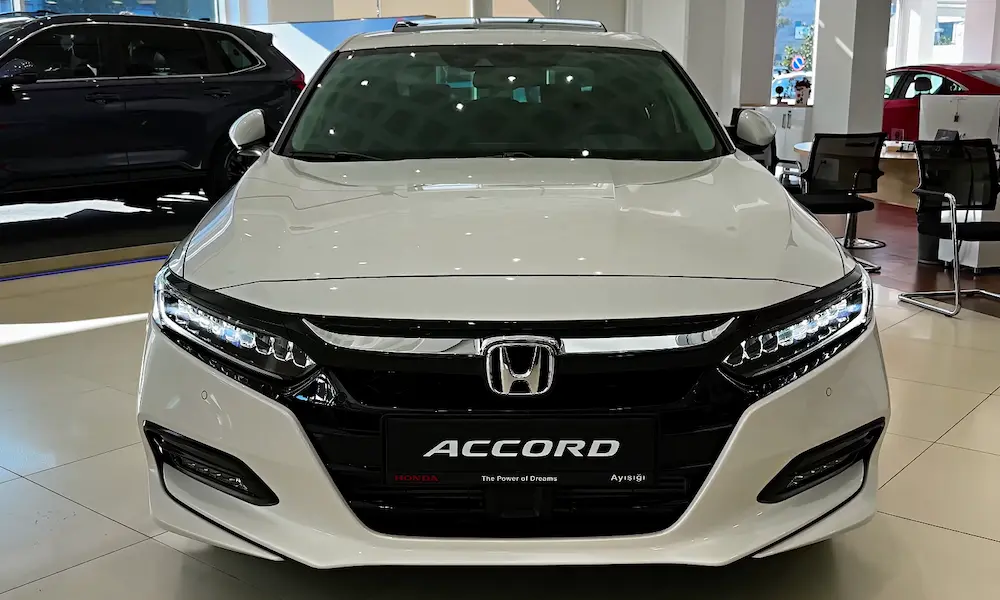
Honda plans to make the 9-inch wireless system standard across all CR-V trims — including the base LX. The days of the smaller 7-inch wired-only screen are numbered. Future models are also likely to follow the Honda Accord’s lead with Google Built-in, which puts Google Maps and Google Assistant directly into the dash — no phone required for navigation.