Struggling to get Apple CarPlay working in your VW? Whether you’ve got a wired MIB2 system or a newer wireless MIB3, this guide walks you through every step. You’ll also find fixes for the most common connection problems. Stick around — the troubleshooting section alone is worth it.
What Is Apple CarPlay in a Volkswagen?
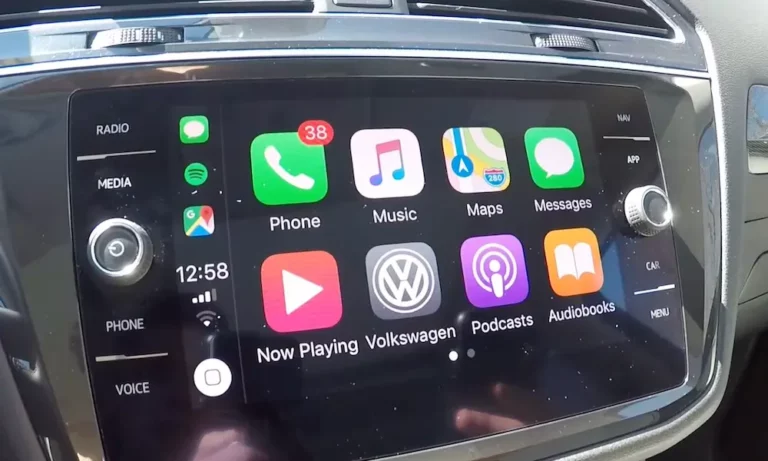
Apple CarPlay turns your iPhone into the brain of your VW’s infotainment system. Your car’s screen becomes the display, and your iPhone handles all the processing for navigation, calls, music, and messages.
Volkswagen calls its integration platform App-Connect. It launched in 2016 with the MIB2 infotainment system, replacing the older proprietary MDI cable system. Before that, VW’s Media Device Interface only handled basic audio — no apps, no interaction.
Today, App-Connect supports full CarPlay across nearly every VW model sold in the US.
Which Volkswagen Models Support Apple CarPlay?
Most VWs sold in the US since 2016 support CarPlay. The type of connection — wired or wireless — depends on the model year and trim.
| Model | CarPlay Years | Connection |
|---|---|---|
| Atlas / Atlas Cross Sport | 2017 – Current | Wired (2017–2020), Wireless (2021+) |
| Arteon | 2018 – Current | Wired (2018–2020), Wireless (2021+) |
| Beetle / Beetle Convertible | 2016 – 2019 | Wired Only |
| Golf / GTI / Golf R | 2016 – Current | Wired (2016–2021), Wireless (2022+) |
| ID.4 | 2021 – Current | Wireless Standard |
| ID. Buzz | 2025 – Current | Wireless Standard |
| Jetta / Jetta GLI | 2016 – Current | Wired (2016–2020), Wireless (2021+ SE/SEL) |
| Taos | 2022 – Current | Wired (S trim), Wireless (SE/SEL) |
| Tiguan | 2016 – Current | Wired (2016–2020), Wireless (2021+ SE/SEL) |
| Passat | 2016 – 2022 | Wired (2016–2020), Wireless (2021+) |
One thing to note: Entry-level trims on newer models like the Taos S and Jetta S may still use wired-only CarPlay even though they have MIB3 hardware. Wireless App-Connect is often a trim-level upgrade.
MIB2 vs MIB3: What’s the Difference?
Your VW’s infotainment generation determines how CarPlay connects and what features you get.
| Feature | MIB2 | MIB3 |
|---|---|---|
| Physical Port | USB-A (rectangular) | USB-C (oval) |
| Connection Type | Wired only | Wireless + Wired |
| Standard Year | 2016 | 2021 |
| Software Updates | SD Card / Dealer | Over-the-Air (OTA) |
| Interface Style | Physical buttons & knobs | Touchscreen / Haptic |
MIB2 (2016–2020)
MIB2 uses a USB-A port, usually in the center console storage bin. It requires a physical cable connection to run CarPlay. Early 2016 models sometimes needed a specific USB module upgrade to pass Apple’s authentication check — without it, CarPlay simply wouldn’t launch.
MIB3 (2021–Present)
MIB3 arrived with select 2021 models and brought wireless CarPlay with it. It uses Bluetooth to discover your phone, then switches to a 5GHz Wi-Fi connection for the actual CarPlay session. It also swapped USB-A for USB-C, which charges modern iPhones much faster.
How to Use Apple CarPlay in Volkswagen: Wired Setup
This works for all MIB2 vehicles and MIB3 vehicles on base trims.
Before you start: Make sure your iPhone is unlocked. CarPlay won’t authenticate through a locked screen on first setup.
- Start the car and put it in Park.
- Use a quality data cable — Lightning to USB-A (MIB2) or Lightning/USB-C to USB-C (MIB3). Cheap charging-only cables don’t carry the data signal CarPlay needs.
- Plug your iPhone into the primary USB data port in the center console.
- Tap “Allow” when your iPhone asks permission to use CarPlay.
- On the VW screen, if CarPlay doesn’t launch automatically, tap the App or App-Connect icon and select Apple CarPlay from the device list.
That’s it. CarPlay should load within a few seconds.
How to Connect Apple CarPlay Wirelessly in Volkswagen
Wireless CarPlay on MIB3 involves a Bluetooth handshake followed by a Wi-Fi data transfer. Here’s how to pair your phone step by step:
- On your iPhone, go to Settings → Bluetooth and turn it on. Then go to Settings → Wi-Fi and turn it on too. You don’t need to manually connect to anything.
- On the VW screen, tap the Telephone or App-Connect icon. The screen shows your vehicle’s ID — usually “myVW” followed by a number string.
- On your iPhone, find that vehicle ID in your Bluetooth device list and tap it.
- Verify the pairing code — a six-digit number appears on both screens. Tap Pair on your phone and Yes on the car’s screen.
- When prompted, tap “Use CarPlay” on your iPhone.
- Confirm on the car’s screen — the system disables the Bluetooth audio profile and launches CarPlay through Wi-Fi.
After the first setup, your VW connects automatically whenever your iPhone is in range with Bluetooth on.
USB-A vs USB-C: Which Cable Do You Need?
Getting the cable right matters more than most people think.
| Port Type | VW Years | Max Power | Data Speed |
|---|---|---|---|
| USB-A (rectangular) | 2016–2020 | ~7.5W | 480 Mbps |
| USB-C (oval) | 2021–Present | ~15–60W | Up to 10+ Gbps |
USB-A ports on older VWs often only maintain your iPhone’s charge while CarPlay is running — they don’t top it up. USB-C ports on MIB3 vehicles offer proper power delivery, so your battery actually climbs while you drive.
If you’ve got an older iPhone with a Lightning connector and a new VW with USB-C, use a direct Lightning to USB-C cable rather than an adapter. VW’s official media adapter cable works well, but a straight cable gives you better signal and fewer connection drops.
How to Fix Apple CarPlay Not Working in Your VW
CarPlay giving you grief? Here are the fixes that actually work — no dealership visit required.
Do the 15-Second Infotainment Reset
This solves most CarPlay issues — frozen screens, failed connections, black displays. Press and hold the volume/power knob for 10–20 seconds while the ignition is on. The screen goes dark, the VW logo appears, and the system reboots. It clears temporary memory without wiping your settings.
Fix “Connection Cancelled” Errors
This error usually means the security handshake between your iPhone and the car got interrupted. Two common causes:
- Clock mismatch — If your VW’s clock has drifted from your iPhone’s time, CarPlay’s encrypted certificate gets rejected. Set your vehicle clock to GPS or Automatic mode and the issue often disappears immediately.
- Siri is off — CarPlay depends on Siri. If Siri is disabled in your iPhone settings, your VW won’t launch CarPlay at all. Go to Settings → Siri & Search and make sure it’s active.
Clear the App-Connect Pairing Database
If one specific iPhone keeps failing to connect, reset only the App-Connect module — not the whole system. Navigate to Settings → Factory Settings → App-Connect. This wipes the smartphone pairing records and lets you start fresh without losing other preferences.
Check Your Cable
On older MIB2 systems, a worn USB-A port can cause constant dropouts. If the cable wiggles even slightly in the port, CarPlay will crash during the rapid data handshake. Swap in a fresh MFi-certified cable and test before assuming the port is dead.
OTA Update Gone Wrong?
MIB3 vehicles receive over-the-air software updates that can occasionally cause black screens or unresponsive displays. VW typically pushes hotfix updates automatically within days. If the problem persists after a week, your dealer can re-flash the firmware using a diagnostic tool.
Getting the Most Out of CarPlay in Your VW
Once you’re connected, here’s how to actually use it well.
Use the Steering Wheel Button for Siri
The push-to-talk button on your VW’s steering wheel does double duty. Short press = VW’s native voice system. Long press (2–3 seconds) = Siri activates directly. Use the long press to dictate texts, set navigation, or control music without touching the screen.
Customize Your CarPlay App Layout
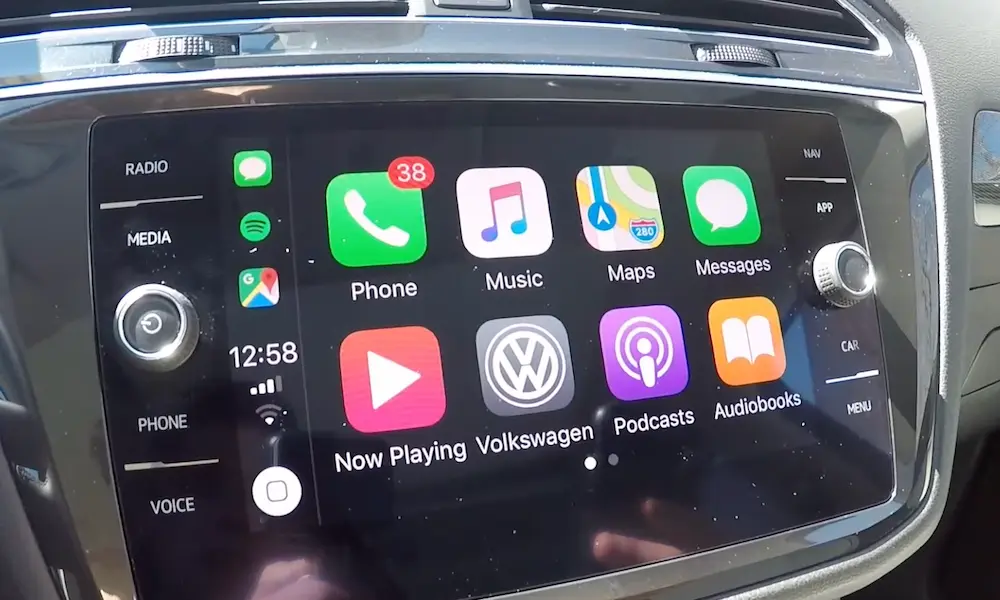
On larger screens like the 10-inch or 12-inch displays in the Tiguan and ID.4, CarPlay runs a Dashboard view — split-screen with a map, calendar, and audio controls. You can customize which apps appear and in what order:
- On your iPhone, go to Settings → General → CarPlay → [Your Car’s Name] → Customize
- Drag apps to reorder or remove them from the CarPlay home screen
You can also enable Driving Focus to silence notifications while moving, which reduces distraction on longer drives.
CarPlay and EV Routing in the ID.4
If you drive a VW ID.4, Apple Maps in CarPlay can access your battery’s state of charge in real time. It uses this data to automatically plan charging stops based on your current range and charger speeds along your route. You don’t need to set this up — it works automatically when you start navigation in Apple Maps.
Does CarPlay Require a Car-Net Subscription?
No — and this confuses a lot of VW owners. Apple CarPlay runs entirely on your iPhone’s cellular data and Apple’s servers. It has nothing to do with Volkswagen’s Car-Net subscription services.
Car-Net and the myVW app handle remote features like locking your car from your phone, tracking its location, or scheduling service appointments. Those features may require a subscription after the trial period. CarPlay doesn’t.
What If Your VW Doesn’t Have CarPlay Built In?
If you’ve got a pre-2016 VW or a 2016+ base model where CarPlay wasn’t activated, you’ve got options.
Software activation: Some 2016–2017 VWs have MIB2 hardware but CarPlay was never switched on at the factory. A dealer can sell you a software activation key to unlock it without any hardware swap.
Aftermarket head units: Brands like Alpine, Kenwood, and Sony make retrofit head units designed for older Golf, Jetta, and Passat models. These units preserve your factory steering wheel controls and backup camera while adding modern wireless CarPlay.
Both routes are legitimate — the software unlock is the cleaner option if your hardware supports it.