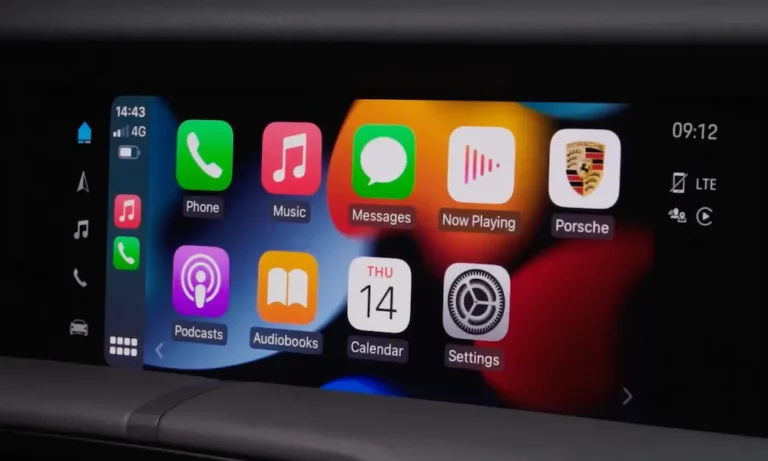
Got a Porsche and an iPhone but can’t figure out why they won’t talk to each other? You’re probably missing one small step. This guide covers every method — wired, wireless, and even classic retrofits — so you can get Apple CarPlay running in your Porsche fast. Read to the end, because the troubleshooting section alone will save you a dealership visit.
First, Check Which PCM Version You Have
Before anything else, you need to know which Porsche Communication Management (PCM) system your car runs. The PCM is the brain behind your infotainment, and its version determines how you connect.
Here’s a quick breakdown:
| PCM Version | Key Models | Connection Type |
|---|---|---|
| PCM 4.0 | 718 (2017–2023), 911 (2017–2019) | Wired USB only |
| PCM 5.0 | 911 (2019–2021), Cayenne (2019–2021) | Wired + some wireless |
| PCM 6.0 | 911 (2022+), Taycan, Cayenne (2022+) | Wireless + wired |
You can find your PCM version in the system settings menu on your central display.PCM 4.0 introduced proximity sensors and gesture support. PCM 6.0, launched in 2021, added native Apple Music and Apple Podcasts directly inside the system — no switching between menus required.
Does Your Porsche Support Apple CarPlay?
Good news: if your Porsche is a 2017 model or newer, it almost certainly does. Porsche made CarPlay standard across its entire lineup from the 2017 model year onward.
Here’s what wireless support looks like by model:
| Porsche Model | CarPlay Since | Wireless Available |
|---|---|---|
| 911 (all variants) | 2017 | 2019+ |
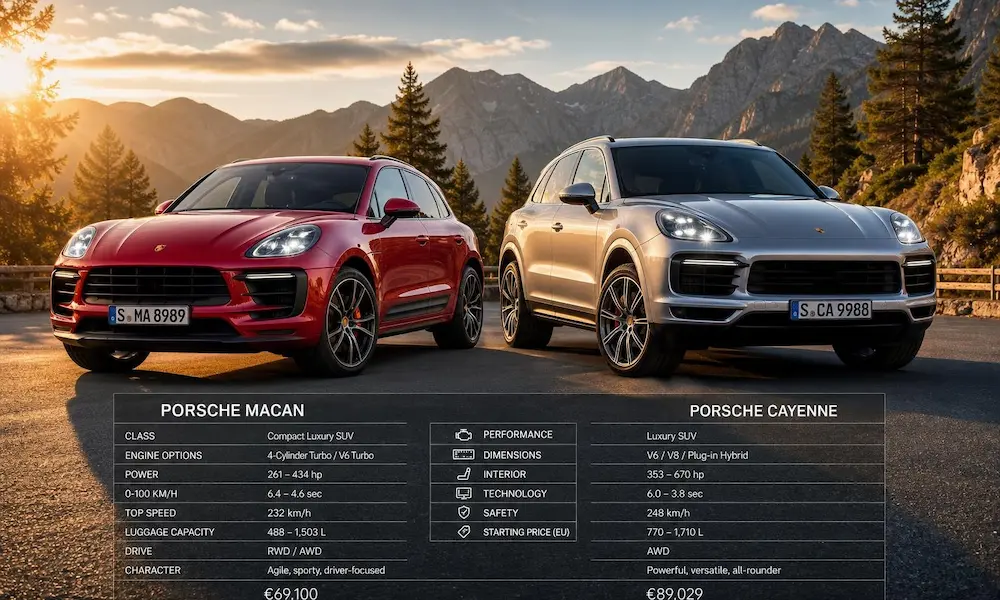
| Cayenne / Cayenne Coupe | 2017 | 2019+ |
| Macan | 2017 | 2019+ |
| Panamera / Sport Turismo | 2017 | 2020+ |
| 718 Boxster / Cayman | 2017 | Wired only |
| Taycan (all variants) | 2020 | Standard wireless |
The Taycan has supported wireless CarPlay since day one in 2020. The 718 Boxster and Cayman, however, still rely on a wired connection. Know your car before you try to connect wirelessly and wonder why nothing’s happening.
Set Up Your iPhone Before You Try Anything
Most CarPlay connection failures start on the iPhone — not the car. Get these settings right first.
Minimum iPhone Requirements
You need an iPhone 7 or later running the latest iOS version. Older devices just don’t have the hardware to run the CarPlay interface properly.
iPhone Settings You Must Check
Head into your iPhone settings and confirm these are all active:
- Siri enabled: Go to Settings > Siri & Search. Turn on “Listen for Hey Siri,” “Press Side Button for Siri,” and “Allow Siri When Locked.” CarPlay won’t work properly without Siri.
- Bluetooth and Wi-Fi: Both must be on for wireless CarPlay. Bluetooth handles the initial handshake. Then the system switches to Wi-Fi for map and audio streaming.
- CarPlay not restricted: Go to Settings > Screen Time > Content & Privacy Restrictions > Allowed Apps. Make sure CarPlay is toggled on. This one catches a lot of people off guard.
According to Apple’s CarPlay troubleshooting guide, a restricted CarPlay setting is one of the most common reasons a car won’t detect your iPhone at all.
How to Connect Apple CarPlay to Porsche via USB (Wired)
Wired connection works on every compatible Porsche from 2017 onward. It’s also more stable and charges your phone simultaneously.
Find the Right USB Port
Look inside your center console armrest. Most Porsche models include a dedicated smartphone tray with a USB port. Important: not every USB port in your car supports data transfer. Some are for charging only. Check the port labeling on your specific model.
Steps to Connect
- Use an original Apple cable or an MFi-certified cable. The Porsche data bus is picky — uncertified cables cause crashes or fail entirely.
- Plug your iPhone into the correct USB port.
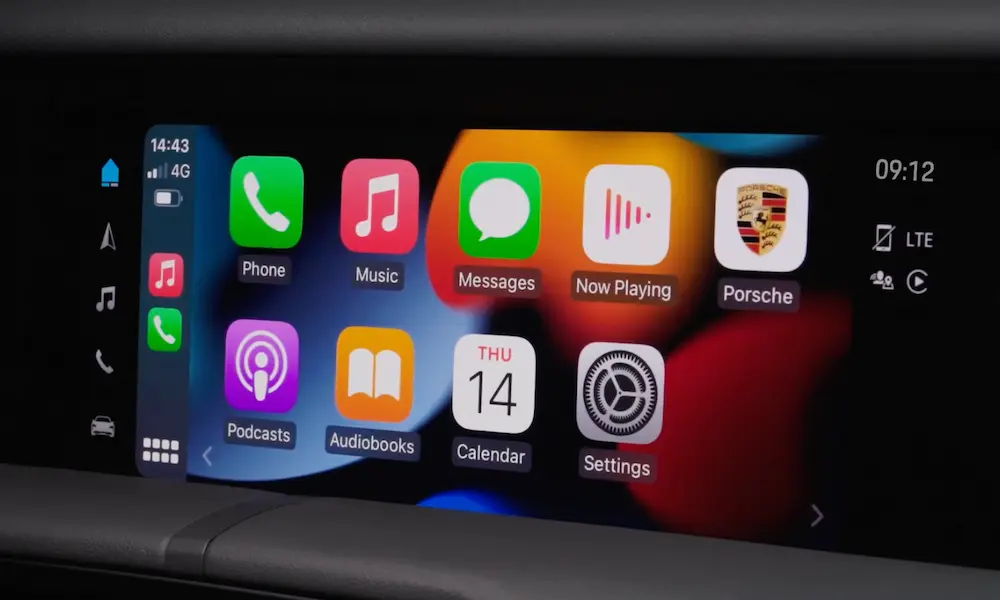
- A prompt appears on the PCM screen asking you to start Apple CarPlay. Tap to confirm.
- On your iPhone, tap “Allow CarPlay with ‘Porsche’ while phone is locked.”
That’s it. CarPlay launches automatically every time you plug in after that first authorization.
How to Connect Apple CarPlay to Porsche Wirelessly
Wireless CarPlay works on PCM 5.0 (select models) and all PCM 6.0 vehicles. Your phone stays in your pocket or on the wireless charger — no cable needed.
Method 1: Pair Through the Device Manager
- On the PCM display, tap the Devices icon or open Device Manager.
- Select “Connect New Device” or “Connect Apple CarPlay.”
- On your iPhone, go to Settings > General > CarPlay. Your phone starts searching for nearby vehicles.
- When your Porsche appears on the iPhone screen, tap it.
- A pairing code appears on both screens. Confirm they match, then tap Pair on the iPhone.
- Select Allow to sync contacts and favorites.
- Tap “Use CarPlay” on your iPhone, then accept the prompt on the PCM.
The official Porsche US CarPlay guide walks through this exact process step by step if you want to follow along on your PCM simultaneously.
Method 2: Pair Using the Steering Wheel Button
This is the faster option once you’ve done it once before.
- Open Settings > General > CarPlay on your iPhone so it’s actively searching.
- Press and hold the voice control button on your steering wheel (or the turn signal stalk in the Cayenne) for about three seconds.
- Your iPhone name pops up on the PCM display.
- Tap it and follow the pairing prompts.
Using the My Porsche App for Deeper Integration
If you own a 2022 or newer Porsche, the My Porsche app unlocks a genuinely useful feature: you can control vehicle functions directly inside the CarPlay interface without switching back to the PCM menus.
Once you link the app to your car, you get CarPlay icons that let you adjust:
- Cabin temperature and airflow
- Ambient interior lighting (color and brightness)
- Audio profiles for Bose or Burmester systems
- Wellness modes like Relax, Warm Up, or Refresh — which simultaneously change lighting, climate, and audio
QR Code Setup for 2024–2025 Models
The 2025 Taycan and Macan Electric use a QR Code Setup Assistant that does everything in one workflow. When you start the car, the PCM shows a QR code. Scan it with the My Porsche app, and it links your Porsche ID, activates connected services, and initiates CarPlay pairing simultaneously. It’s genuinely slick.
Siri vs. Porsche Voice Pilot: Know the Difference
Your steering wheel voice button does two different things depending on how long you press it.
- Short press → Activates Porsche Voice Pilot. Use this for car commands: “Set temperature to 70 degrees” or “Navigate to the nearest Porsche dealership.”
- Long press (3 seconds) → Activates Siri. Use this for phone tasks: sending messages, making calls, playing music, or setting reminders.
Siri in CarPlay handles things like:
- “Get directions to the nearest gas station”
- “Call [Contact Name]”
- “Play my Chill playlist on Apple Music”
- “Remind me to check the tire pressure when I get home”
Keep them separate in your head and you’ll avoid a lot of frustration.
CarPlay Not Working? Fix It Here
| Problem | Likely Cause | Fix |
|---|---|---|
| PCM doesn’t detect iPhone | CarPlay restricted in Screen Time | Check Settings > Screen Time > Allowed Apps |
| Wireless connection fails (iOS 18) | Active VPN blocking local Wi-Fi | Disable VPN profiles on iPhone |
| Disconnects while driving | Non-certified cable | Replace with original Apple or MFi cable |
| Siri doesn’t respond | “Allow When Locked” is off | Enable in Settings > Siri & Search |
| Audio lag or stuttering | Wi-Fi interference | Turn off “Private Wi-Fi Address” for the car’s network |
The Full Reset Method
When nothing else works, wipe everything and start fresh:
- On iPhone: Settings > General > CarPlay → Select your car → Forget This Car
- On iPhone: Settings > Bluetooth → Find your Porsche → Forget This Device
- On PCM: Open Device Manager → Select your iPhone → Delete it
- Turn off the car. Restart your iPhone. Start both systems fresh and re-pair from scratch.
Apple’s support page confirms this “forget and reset” approach resolves the majority of persistent connection failures.
The iOS 18 VPN Bug
A large number of CarPlay failures in 2024 and 2025 trace back to VPN apps. Wireless CarPlay runs on a local ad-hoc Wi-Fi network, and many VPN apps block exactly that type of connection. This issue is widely reported — temporarily disabling your VPN is worth trying before you do anything else.
Retrofitting Older Porsches with CarPlay
Porsche hasn’t forgotten classic owners. The Porsche Classic Communication Management (PCCM) system lets you install a modern CarPlay head unit in older models without butchering the interior.
| Retrofit Unit | Target Models | Screen Size |
|---|---|---|
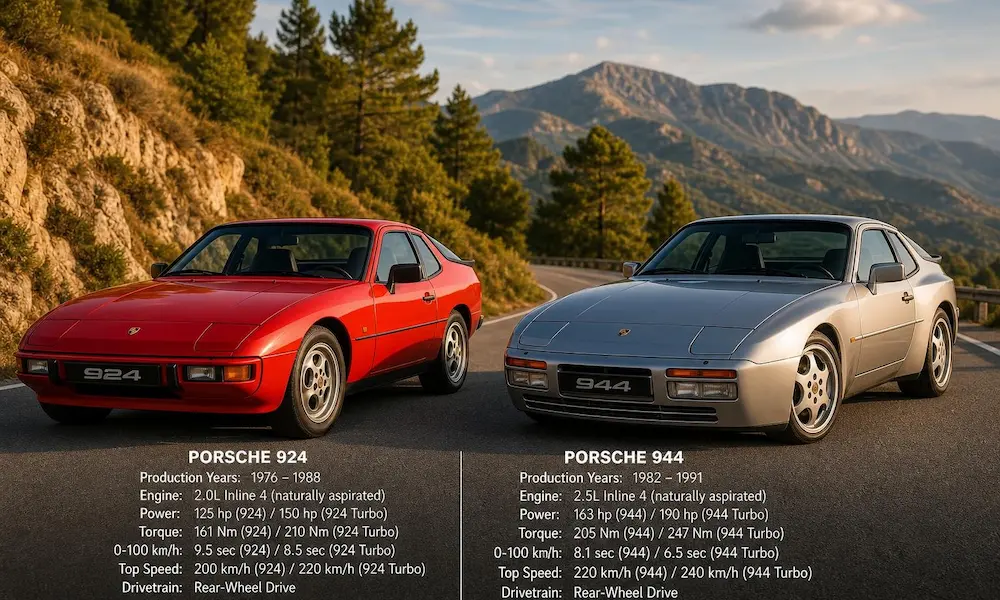
| PCCM (1-DIN) | 356, 911 Classic, 914, 924, 928, 944, 968 | 3.5-inch |
| PCCM Plus (2-DIN) | 911 (996/997.1), Boxster/Cayman (986/987), early Cayenne | 7-inch |
The PCCM Plus integrates with your existing speakers and supports both Apple CarPlay and Android Auto on a proper 7-inch high-resolution touchscreen. It’s purpose-built to fit the original dashboard slots — no hacking required.
A Few Things Worth Knowing Before You Drive
Bluetooth turns off when CarPlay is active. The system hands all audio and calls over to CarPlay. You can’t simultaneously stream music from a second phone through standard Bluetooth.
CarPlay uses your iPhone’s cellular data. Map streaming and music playback eat through data. If you’re near an international border or in a rural area with spotty coverage, keep that in mind.
Screen Time counts CarPlay usage. iOS logs CarPlay sessions as active screen time. Apps like Maps or Spotify running on the PCM display count toward your totals. You can exclude specific apps from Screen Time reports, but the tracking itself stays active.
Keep both systems updated. Porsche pushes PCM firmware updates that fix compatibility issues with new iOS versions. Some models support over-the-air updates; older units may need a dealership visit for a manual software flash. Either way, staying current is the single best thing you can do to prevent connection problems before they start.