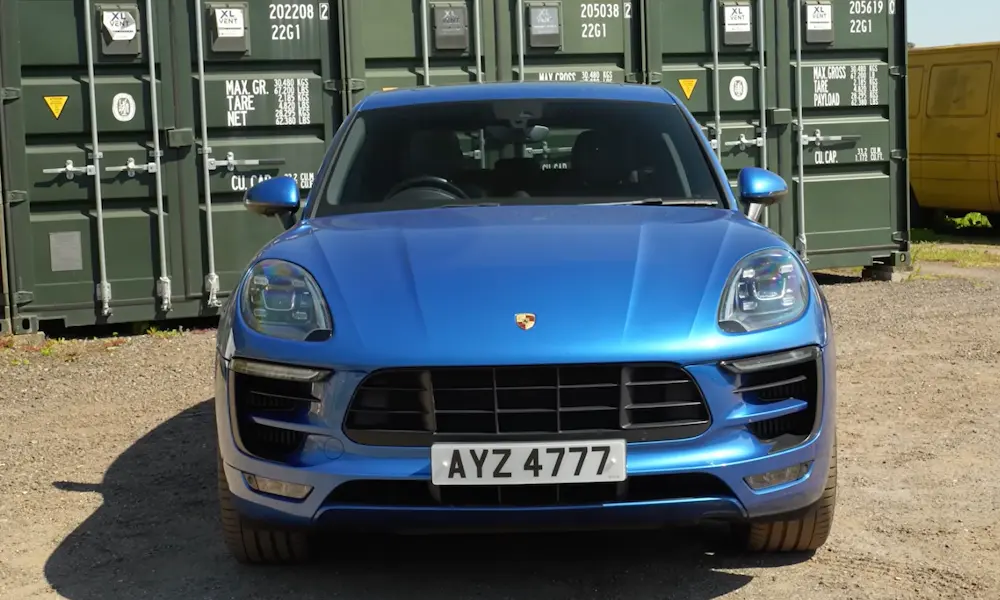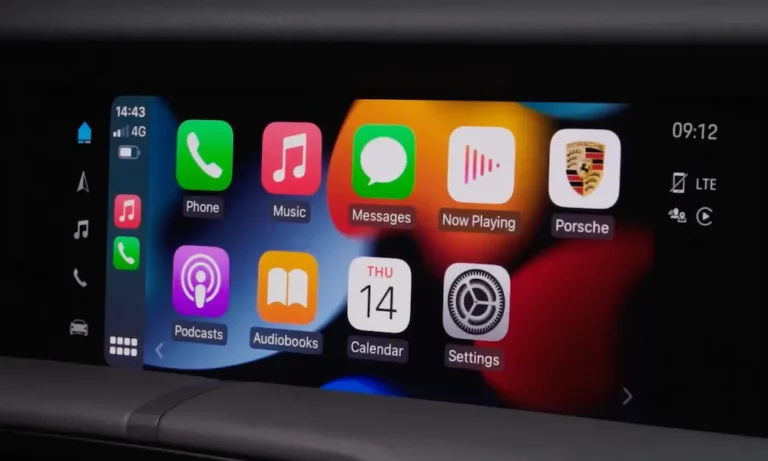
Is your Porsche CarPlay not working and you don’t know where to start? The fix is usually simpler than you’d think — but sometimes it’s a sneaky software setting you’d never guess. This guide walks you through every real cause and fix, from bad cables to iOS bugs. Stick around, because the solution might be just two minutes away.
First, Know Your PCM Version
Before you troubleshoot anything, figure out which Porsche Communication Management (PCM) system your car has. The fix depends on it.
| PCM Version | Model Years | CarPlay Type |
|---|---|---|
| PCM 3.0/3.1 | 2009–2016 | No native CarPlay |
| PCM 4.0 | 2017–2018 | Wired only |
| PCM 5.0 | 2019–2021 | Wired (wireless via update) |
| PCM 6.0 | 2022–Present | Native wireless |
PCM 4.0 was the first system to support native CarPlay. If you’ve got a 2016 or older model, you’ll need a retrofit kit — CarPlay simply wasn’t built in.
Check your PCM version by going to Settings > System > Version on your infotainment screen.
The Cable Is Probably the Culprit
Here’s the honest truth: a bad cable causes most wired Porsche CarPlay not working problems.
CarPlay needs a cable that handles USB 2.0 data speeds (480 Mbps). Cheap cables from Amazon or gas stations often only charge your phone — they skip the data pins entirely. No data pins, no CarPlay.
What to check:
- Use only an Apple-certified (MFi) cable
- Keep cable length under 3 feet — longer cables degrade signal in a car’s noisy electrical environment
- iPhone 15 or 16? You need USB-C, but not all USB-C cables support CarPlay data transfer
- Check for lint in your iPhone’s port — compressed air fixes this more often than you’d think
Plug Into the Right Port
Not every USB port in your Porsche sends data. Rear-seat ports are almost always charge-only.
| Model | CarPlay Data Port Location | Connector |
|---|---|---|
| Taycan (2020+) | Center console armrest (front ports) | USB-C |
| 911 (992) | Center console storage bin | USB-C |
| Cayenne (2019+) | Armrest compartment | USB-A or USB-C |
| Macan (2019+) | Center console or storage shelf | USB-A or USB-C |
On the Macan EV, ports hide behind panels and under the phone shelf. If you’re not plugging into the right spot, it won’t connect — full stop.
Wireless CarPlay Not Connecting? Check These First
Wireless CarPlay doesn’t run on Bluetooth alone. It uses Bluetooth only to start the handshake, then switches to a 5GHz Wi-Fi Direct connection. If either part breaks down, you’re stuck staring at a blank screen.
Top wireless fixes:
- Turn Wi-Fi on — yes, you need Wi-Fi enabled even though you’re not connecting to a network
- Disable auto-join on home Wi-Fi — if your home network reaches your garage, your iPhone grabs it and ignores the car’s network
- Check your hotspot password — PCM 6.0 systems can silently fail if the vehicle’s hotspot password is too weak. Update it to include uppercase letters, numbers, and at least eight characters
- Kill your VPN — iOS 18 VPNs like NordVPN or ExpressVPN can block the local network traffic CarPlay needs. Disable it, test CarPlay, then turn it back on
iPhone Settings That Silently Block CarPlay
Your iPhone might be the one saying no. These settings are easy to miss.
Siri Must Be On
CarPlay won’t launch if Siri is disabled. Go to Settings > Siri & Search and make sure:
- “Ask Siri” is turned on
- “Allow Siri When Locked” is enabled
Without that second toggle, your iPhone won’t project CarPlay when the screen is off — which is basically always when you’re driving.
Screen Time Can Kill CarPlay Silently
If Screen Time is on, it might be blocking CarPlay entirely. Go to Settings > Screen Time > Content & Privacy Restrictions > Allowed Apps and confirm CarPlay is toggled on. When it’s off, your Porsche won’t even detect your phone as CarPlay-compatible.
The Fix That Works Most of the Time: Forget and Re-Pair
Software glitches build up in the connection profile over time. The cleanest solution is wiping the pairing on both sides and starting fresh.
Here’s exactly how:
- On your iPhone: go to Settings > General > CarPlay, select your Porsche, tap Forget This Car
- Also delete the car from your Bluetooth menu
- On your PCM: go to Devices, find your iPhone, swipe left and tap the trash icon
- Hard restart your iPhone (hold side button + volume down, swipe to power off)
- Turn the car fully off, wait 30 seconds, restart
- Reconnect and immediately accept every permission — contacts, favorites, CarPlay access. Hesitate too long and the handshake times out
This process works for both wired and wireless setups.
How to Reset Your PCM
If re-pairing doesn’t fix it, reset the PCM itself.
| PCM Version | Soft Reset | Factory Reset Path |
|---|---|---|
| PCM 3.1 / 4.0 | Hold “Info” button 10 seconds | Vehicle > Settings > Reset > Factory Settings |
| PCM 5.0 | Two-finger tap top-right corner | Car > Control > System > Factory Settings |
| PCM 6.0 | Hold volume knob 12 seconds | Settings > System > Reset to factory settings |
The two-finger tap on PCM 5.0 opens a hidden engineering menu. From there, select Reboot to Normal Mode. This forces a deep OS restart — useful when the screen freezes or CarPlay gets stuck loading.
For the nuclear option: disconnect your 12V battery for 15 minutes. This drains residual power from the PCM capacitors and forces a full hardware reset. After reconnecting, give the system up to 10 minutes to re-sync with Porsche’s servers.
iOS 17 and 18 Bugs Are a Real Problem
It’s not always your hardware. Apple shipped bugs that directly cause Porsche CarPlay not working situations.
A Technical Service Bulletin (TSB 91 24 21 2074302/1) from the VW Group confirmed an iOS 17 bug that makes the smartphone interface deactivate unexpectedly — especially when SiriusXM or native navigation runs in the background. Porsche service centers were told not to swap hardware, because the fix lives inside an iOS update.
If you’re on iOS 17 and hitting this, update to iOS 18. If you’re already on iOS 18, check for the latest point update.
A separate TSB from 2025 also covers smartphone interface patches across newer Porsche models. Your dealer can check if your car has an outstanding software campaign that fixes your exact issue.
Model-Specific Issues Worth Knowing
Cayenne Owners: The SiriusXM Reboot Loop
2018–2022 Cayennes had a widespread issue where the PCM crashed every few minutes due to a corrupted SiriusXM data stream. It took CarPlay down every time. Temporary fix: disable HD Radio and SiriusXM in the tuner settings to stabilize the system until a firmware patch lands.
Taycan Owners: Check Private Mode
Early 2020 Taycans got wireless CarPlay through a free software update in September 2020. If CarPlay disappears after a service visit, check if your car is in Private Mode — it cuts the data connection CarPlay authentication needs. Find it under Settings > Privacy.
Macan EV: The Black Screen Problem
Early 2024–2025 Macan EVs sometimes show a black screen even when the phone is paired correctly. If the Wi-Fi appears active but nothing transfers, lock the car, walk away from the key fob, and leave it alone for over an hour. The communication module enters a sleep cycle and resets itself.
Want Wireless on an Older PCM?
PCM 4.0 (2017–2018 models) only supports wired CarPlay. But wireless adapters exist that plug into your USB data port and act as a wireless bridge between your iPhone and the PCM. They work well, but make sure your USB port delivers enough power — older USB-A ports sometimes don’t give the dongle what it needs.
Your Porsche ID Matters Too
The PCM links to your Porsche ID account for Connect services. If your subscription lapsed or Connect Services got turned off, some CarPlay features fail. Check Settings > Privacy > Connect Services and make sure everything’s active.
Also worth knowing: the PCM uses the car’s embedded SIM for some data tasks. If you’re in a cellular dead zone, vehicle-linked CarPlay features may not load even if your phone has full 5G signal.